For aviation consultants and technical teams: document aircraft and engines in the field with the app, and review projects, photographs and findings through the web platform.
Inspector helps aviation consultants and technical teams document aircraft and engines, explain observations and review findings alongside their evidence. The mobile app supports work in the field. The web platform extends the review to the desktop, within the context of each project.
Capture, Mark Up, Crew, Findings and Hub describe Inspector capabilities within one working environment.
Inspector Capture
Capture the detail. Keep the context.
During a walkaround, a photograph needs more than a clear image: it needs a place where the team can find it. Inspector Capture organizes the inspection journey by categories and subcategories, helping you document an aircraft or engine with a clear reference to its inspection location.
The result: a gallery that keeps the project, the inspection area and each photograph connected.
In the field · Mobile app
Document from the area you are inspecting.
Open the project, choose the category and enter the relevant subcategory before working with its images. The camera workflow described for Inspector starts from that inspection location; the gallery lets you return to a photograph and continue into Mark Up when a detail needs an explanation. This structure brings context to capture and supports later review.
At the desk · Web platform
Review coverage through a familiar structure.
On the web, browse the aircraft or engine categories and consult their photographs. The counts and observations visible in the project help orient the review and identify which area to examine next. The office team can locate evidence by its inspection context, without relying solely on a file name.
From inspection area to photograph.
Aircraft · Mobile app
Open the aircraft categories.
The aircraft project groups general views and parts of the aircraft into illustrated categories.
Mobile app excerpt · 20 Nov 2026.
Subcategories · Mobile app
Choose a view within a category.
Within General Aircraft Views, inspection positions appear as separate rows with counters and controls.
Mobile app excerpt · 20 Nov 2026.
Gallery · Mobile app
Browse the photographs.
The Front subcategory contains one existing photograph that opens in the mobile viewer.
Mobile app · Identifying details redacted · 20 Nov 2026.
Aircraft photo · Mobile app
Inspect a stored photograph.
The viewer displays the photograph selected in the Front gallery, with controls for editing, OIL and sharing.
Mobile app excerpt · 20 Nov 2026.
Engines · Mobile app
Explore an engine project.
The engine project includes categories for general views, preservation, fan, gearbox, engine core and exhaust system.
Mobile app excerpt · 20 Nov 2026.
Engine gallery · Mobile app
Browse the fan module.
The engine project has a Fan Module gallery with multiple existing photographs of the fan blades and liner.
Mobile app · Identifying details redacted · 20 Nov 2026.
Gallery · Mobile app
Two photographs in the front view.
The Front gallery contains two existing entries. Opening one shows the photograph associated with that aircraft view.
Mobile app · Read-only inspection excerpt · 21 Nov 2026.
The inspection structure, on the desktop.
Aircraft
Review the aircraft by section.
Consult the project’s category table with photo counts, recorded states and remarks, then open the inspection section you need.
Real web interface · Aircraft project categories; identifying headers excluded.
Engines
An engine project of its own.
Open a standalone engine inspection with its own category structure, photographs and recorded remarks.
Real web interface · Standalone engine project categories; identifying headers excluded.
01
Locate
Identify the project, category and subcategory that correspond to the inspection area.
02
Document
Record the image within the inspection workflow and retain its location reference.
03
Retrieve
Return to the gallery to examine a detail, add an explanation or support technical review.
Organization starts with the location selected by the inspector. Aircraft and engine photographs retain their respective inspection paths and galleries.
Inspector Mark Up
Show where to look. Explain what you observed.
A photograph shows a surface; an annotation directs attention to the relevant detail. Inspector Mark Up provides drawing and shape tools over the image to make an observation clearer and support the technical conversation between the inspector and the reviewer.
The result: a visual reference that helps people understand the observation in context.
In the field · Mobile app
Annotate the inspection photograph.
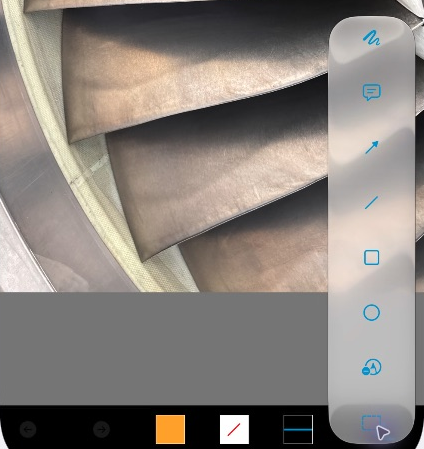
Open a gallery image and enter Mark Up. The tools let you choose how to identify the detail and adjust the color and line width. The mark provides a visual reference: the technical description should explain what was observed, where it is located and what requires review.
At the desk · Web platform
Interpret the detail within the project.
Web review lets you consult photographs and existing annotation examples in the project. The images here show the same engine area in an original photograph and in a retained annotated image. That visual context helps the team discuss an observation while keeping a reference to the evidence behind it.
Inspector Mark Up
Inside Mark Up.
The sequence moves through the viewer, editor, tools, colors and line widths over the same photograph of fan blades.
Drawing
Shapes
Color
Line width
A sequence of five actual screens over the same photograph: viewer, editor, tools, colors and line widths.
Show or hide the tools sequence
A still view of the editor is shown when reduced motion is enabled.
The actual Mark Up tools on the phone.
Engine Mark Up · Mobile app
Open the Mark Up editor.
The Mark Up tool palette opens over an existing fan-blade photograph from the engine project.
Mobile app excerpt · 20 Nov 2026.
An original and an existing annotation, viewed on the web.
Web · Original
Start with the photograph.
This original detail and the next annotated view show the same stored inspection photograph, using an identical crop.
Original photograph · Matching crop of the paired image · Reviewed 20 Nov 2026.
Web · Annotated
Show where to look.
The existing red outline directs attention to the detail. This crop shows only part of the original outline.
Annotated photograph · Partial outline shown in this crop · Reviewed 20 Nov 2026.
An annotation supports communication. Damage assessment and the appropriate action still depend on technical judgment and the applicable documentation.
Inspector Crew
The work in the field. The perspective of the team.
An inspection may involve a consultant beside the asset, a project lead in the office and a technical team reviewing progress. Inspector Crew organizes that participation around projects and teams, with a working context that authorized people can consult.
The result: a common reference for coordinating inspection documentation and review.
In the field · Mobile app
Choose the team and continue with the right project.
In Change Team, Current Team shows the active team. Choose an available team or your Personal Hub, then return to Projects to consult its projects. This workflow helps you continue with the right client and asset within the same account. Before documenting, confirm the team, project and inspection area.
At the desk · Web platform
Review several clients from My Projects.
In My Projects, expand the client’s Team group and open its aircraft or engine project. To review another client, return to the list and expand the other group; several groups can remain open. This helps you locate the inspection for each assignment and review its photographs and findings within your account’s access.
Switch teams and consult their projects.
Projects · Mobile app
Find a project in the mobile app.
Each project card shows a model and labeled fields for registration, serial number and operator.
Mobile app · Identifying details redacted · 20 Nov 2026.
Teams · Mobile app
Choose a team.
Change Team identifies the current team and offers a selector for another accessible team.
Mobile app · Identifying details redacted · 20 Nov 2026.
Several clients within the same web account.
Clients & teams
Find the client’s project.
My Projects provides expandable Team groups for client projects. Open the relevant team and select the inspection you need to review.
Real web interface · Team groups shown collapsed; client names redacted.
01
Field work
The inspector documents the asset and contributes the observation with its evidence and location.
02
Coordination
The project lead reviews the context and organizes the questions that need follow-up.
03
Technical review
The authorized team consults project information and works through findings that require attention.
Crew project management focuses on the inspection context: team, asset, photographs and findings. The OIL develops technical follow-up within Inspector Findings.
Inspector Findings
A finding. Its evidence and follow-up.
Inspector Findings brings open items together in the OIL, Open Items List. The inspection location, discrepancy and reference photograph allow each observation to be reviewed as part of the project. The technical conversation can draw on an organized record shared by the authorized team.
The result: a clear basis for reviewing open items, preparing deliverables and organizing technical follow-up.
In the field · Mobile app
Consult the OIL beside the asset.
Open OIL Dashboard from the project. When findings are present, each row shows the location and a thumbnail. Open the row in OIL Tracking to review the photograph, discrepancy and existing entries. The Options menu on an open finding can show a Close Item control.
At the desk · Web platform
Review items with a project perspective.
In Open Items List, locate the finding by its inspection location and read the discrepancy beside its reference photograph. These details can also be consulted in OIL Tracking on the phone. At a desk, the project lead can prepare the technical review, organize questions for the team and identify documentation that needs follow-up.
OIL Dashboard and OIL Tracking in the app.
Open Items List · Mobile app
Read the open items.
The OIL Dashboard groups existing findings by inspection location and shows a thumbnail for each entry.
Mobile app · Identifying details redacted · 20 Nov 2026.
OIL Tracking · Mobile app
Follow one finding.
The existing finding opens in OIL Tracking, where its reference photograph, inspection location and discrepancy entry appear together.
Mobile app · Identifying details redacted · 20 Nov 2026.
Open Items List on the desktop.
Open Items List
Review the item with its evidence.
Review the location, discrepancy and baseline photograph together in the list, preserving the context of the recorded observation.
Real Open Items List · Excerpt showing Item, Location, Discrepancy and Baseline Evidence.
OIL · Web platform
Export control in the findings list.
The Export XLS control appears beside the summary of total, open and closed discrepancies. This view places the findings list in the context of the inspection’s recorded progress.
Web platform · Identifier masked · 21 Nov 2026.
01
What was observed
A clear description of the discrepancy or point that requires review.
02
Where, and with what evidence
The inspection location and image that help identify the detail.
03
What comes next
Recorded comments and statuses to support follow-up by authorized people.
A comment or status change records an action within the project. Technical or contractual acceptance requires the appropriate review and authorization.
Inspector Hub
Evidence keeps its place in the project.
Inspector Hub supports continuity by bringing project context and its images together within Inspector. The app serves work beside the asset; the web platform provides a place to consult photographs, categories and findings from the desktop.
The result: an information structure that lets people return to evidence and understand the inspection it belongs to.
In the field · Mobile app
Return to the project when you need the context.
Return to the team and project to consult a photograph or review a finding at its inspection location. The Project menu brings together Download from the cloud and Remove from device options for project availability on the phone. Galleries retain the inspection-area reference when you need to revisit an observation beside the asset.
The web viewer lets you open a photograph, zoom in and reset the view to examine a detail. The image remains part of the project review, preserving a reference to the inspection structure and related observations. The desktop provides a review surface that complements mobile capture.
Project options in the field.
Project · Mobile app
Project options on the device.
The menu offers to download the project from the cloud or remove it from the device. Both controls were visible while the project was online.
Mobile app · Read-only inspection excerpt · 21 Nov 2026.
Consulting and enlarging evidence in the web viewer.
Web viewer
Look closer at the detail.
Open a photograph in the web viewer, enlarge it to examine the detail and reset the view when you need to return to its initial scale.
Real web viewer · Inspection photograph and original image controls.
Inspector’s infrastructure serves this workflow: organizing information by project and enabling authorized team members to consult it. A shared structure supports capture, explanation and review.
The experience behind Inspector
Real aviation work. Technology developed by ADD Aviation.
ADD Aviation develops its own technology and delivers specialist technical services to help clients understand, document and manage their assets. Inspector grows from that connection between field work and tool development: observing how inspections are performed, understanding what the next participant needs to know and organizing information so it can be useful.
Aviation Intelligence
A photograph gains value when it is connected to the asset, the inspection area, the observation and professional judgment. Connecting information with experience is the intelligence that guides ADD.
Infrastructure that supports the work
The app, web access and project structure serve a shared purpose: helping evidence be documented, located and reviewed in the right context. Technology is explained through the work it enables.
Continuity with the client
Understanding the scope of an inspection and how the client reviews its results helps prepare a useful workflow. The conversation starts with the asset, the people involved and the information they need to make decisions.
People working with aviation assets
One tool. Different responsibilities.
The consultant needs to document clearly; the person directing or commissioning the inspection needs to understand and review the result. Inspector presents evidence in a context that helps connect those responsibilities.
Independent consultants and inspectors
Document aircraft and engines within an organized inspection journey. Switch teams when participating in projects for different clients and retain a visual explanation of observations that need review.
Consultancies and project leads
Coordinate the team's documentation and review projects from the web. Use categories, photographs and the OIL to prepare technical conversations and follow up on work that needs attention.
Lessors, owners and asset managers
Consult evidence and findings for projects you can access. Inspection context helps you ask questions, understand observations and prepare the review with your technical team.
Operator and MRO technical teams
Organize visual evidence of aircraft and engines for team review. Define the project scope around the asset, the intervention and the people who need to consult the results.
Product direction · Future capability
A professional community with evidence of its work.
Inspector's direction is to extend the tool's value to consultants around the world. In the future, ADD Aviation aims to explore an environment where professionals can present their services and those commissioning them can find references and evaluations grounded in documented work.
A service provider directory and inspector evaluations are part of this vision. They are not currently available and have no announced launch date.
Questions about working with Inspector
The context before you begin.
What is Inspector.aero?+
It is an ADD Aviation platform for documenting aviation inspections through organized photographs, visual annotations and findings linked to their evidence. It combines a mobile app for field work with a web platform for reviewing project context.
What do I do on the phone and on the web?+
The app lets you browse projects and inspection areas, work with photographs, open Mark Up and consult the OIL. On the desktop, you review teams, projects, categories, images and findings. Each environment serves part of the workflow; available actions depend on access and the project.
Can I work with different clients?+
Yes. An account can provide access to projects across different teams. On the phone, Change Team selects the active team. On the web, My Projects provides expandable Team groups. Each person works within the projects they can access.
Does Inspector support aircraft and engines?+
The screenshots on this page show projects with aircraft and engine categories, including engine component galleries. Each workflow retains the organization of its respective project.
How do field and office teams work together?+
In the field, the inspector documents the asset, organizes photographs and uses Mark Up to explain details. On the web, the project lead consults categories, images and the OIL to prepare the review and follow the team’s observations. Both workflows are organized around the inspection project.
What does OIL mean?+
OIL means Open Items List: the inspection's list of open items. In Inspector, it links observations to their location and evidence. OIL Dashboard presents the list on mobile; OIL Tracking lets you consult an item's details.
Does an annotation or status replace technical assessment?+
Mark Up supports visual explanation and the OIL documents follow-up. Assessing the finding, its acceptability and the appropriate action depends on the authorized professional, applicable documentation and agreed project scope.
What should I confirm before working offline?+
Confirm which information will be available on the device, which operations can be performed and how changes are transferred when connectivity returns. Check these conditions for the version and workflow in use before relying on them during an inspection.
How do I prepare a report or a findings handover?+
Define the handover scope, review the OIL and check that each observation has sufficient location, description and evidence. A structured list supports the findings review and helps explain to the recipient what needs attention and why.
Can I already hire or evaluate inspectors on the platform?+
No. A service directory and professional evaluations belong to the product's future vision. The current presentation focuses on inspection documentation and review capabilities.
Get started
Continue with Inspector.aero.
Open your projects on the web or view the app download for field work. To prepare an inspection with your team, define the asset, the scope and the people who will review the evidence.
Para consultores aeronáuticos y equipos técnicos: documenta aeronaves y motores en campo con la app, y revisa proyectos, fotografías y hallazgos desde la plataforma web.
Inspector ayuda a consultores aeronáuticos y equipos técnicos a documentar aeronaves y motores, explicar observaciones y revisar hallazgos con su evidencia. La app acompaña el trabajo en campo. La plataforma web permite continuar la revisión desde el escritorio, dentro del contexto de cada proyecto.
Capture, Mark Up, Crew, Findings y Hub describen capacidades de Inspector dentro de un mismo entorno de trabajo.
Inspector Capture
Captura el detalle. Conserva el contexto.
Durante un walkaround, una fotografía necesita algo más que una buena imagen: debe poder encontrarse donde corresponde. Inspector Capture organiza el recorrido por categorías y subcategorías de inspección para que documentes una aeronave o un motor con una referencia clara de su ubicación.
El resultado: una galería que conserva la relación entre el proyecto, el área inspeccionada y cada fotografía.
En campo · App móvil
Documenta desde el área que estás inspeccionando.
Abre el proyecto, elige la categoría y entra en la subcategoría correspondiente antes de trabajar con sus imágenes. La cámara descrita en el flujo de Inspector parte de esa ubicación de inspección; la galería te permite volver a una fotografía y continuar con Mark Up cuando necesitas explicar un detalle. Esa estructura aporta contexto desde la captura y facilita la consulta posterior.
En escritorio · Plataforma web
Revisa la cobertura con una estructura reconocible.
En la web, recorre las categorías de la aeronave o del motor y consulta las fotografías asociadas. Los recuentos y las observaciones visibles en el proyecto ayudan a orientar la revisión y a decidir qué área examinar a continuación. El equipo de oficina puede localizar la evidencia por su contexto de inspección, sin depender únicamente del nombre de un archivo.
Del área de inspección a la fotografía.
Aeronave · App móvil
Abre las categorías de la aeronave.
El proyecto de aeronave agrupa vistas generales y zonas del avión en categorías ilustradas.
Recorte de la app móvil · 20 nov 2026.
Subcategorías · App móvil
Elige una vista dentro de la categoría.
Dentro de General Aircraft Views, cada posición de inspección tiene una fila con contador y controles.
Recorte de la app móvil · 20 nov 2026.
Galería · App móvil
Recorre las fotografías.
La subcategoría Front contiene una fotografía existente que se abre en el visor móvil.
App móvil · Datos identificables ocultos · 20 nov 2026.
Foto de aeronave · App móvil
Consulta una fotografía existente.
El visor muestra la fotografía elegida en la galería Front y ofrece controles de edición, OIL y uso compartido.
Recorte de la app móvil · 20 nov 2026.
Motores · App móvil
Explora un proyecto de motor.
El proyecto de motor incluye categorías para vistas generales, preservación, ventilador, caja de accesorios, núcleo y sistema de escape.
Recorte de la app móvil · 20 nov 2026.
Galería de motor · App móvil
Recorre la galería del ventilador.
El proyecto de motor contiene una galería Fan Module con varias fotografías existentes de los álabes del ventilador y su revestimiento.
App móvil · Datos identificables ocultos · 20 nov 2026.
Galería · App móvil
Dos fotografías en la vista frontal.
La galería Front reúne dos entradas existentes. Al abrir una de ellas se muestra la fotografía asociada a esa vista de la aeronave.
App móvil · Recorte de consulta · 21 nov 2026.
La misma lógica de inspección, en escritorio.
Aeronaves
Revisa la aeronave por sección.
Consulta la tabla de categorías del proyecto con cantidades de fotografías, estados registrados y observaciones, y abre la sección de inspección que necesitas.
Interfaz web real · Categorías de un proyecto de aeronave; cabeceras identificables excluidas.
Motores
Un proyecto propio para el motor.
Abre una inspección independiente de motor con su propia estructura de categorías, fotografías y observaciones registradas.
Interfaz web real · Categorías de un proyecto independiente de motor; cabeceras identificables excluidas.
01
Ubica
Identifica el proyecto, la categoría y la subcategoría que corresponden al área de trabajo.
02
Documenta
Registra la imagen dentro del recorrido de inspección y conserva la referencia a su ubicación.
03
Recupera
Vuelve a la galería para examinar el detalle, añadir una explicación o apoyar la revisión técnica.
La organización parte de la ubicación que selecciona el inspector. Las fotografías de aeronave y motor conservan sus propios recorridos y galerías.
Inspector Mark Up
Señala dónde mirar. Explica lo que observaste.
Una fotografía muestra una superficie; una anotación dirige la atención al detalle relevante. Inspector Mark Up incorpora herramientas de dibujo y formas sobre la imagen para hacer más clara una observación y facilitar la conversación técnica entre quien inspecciona y quien revisa.
El resultado: una referencia visual que ayuda a comprender la observación en su contexto.
En campo · App móvil
Anota sobre la fotografía de inspección.
Abre una imagen de la galería y entra en Mark Up. Las herramientas permiten elegir cómo señalar el detalle y ajustar color y grosor de línea. El trazo aporta una referencia visual: la descripción técnica debe explicar qué se observó, dónde se encuentra y qué requiere revisión.
En escritorio · Plataforma web
Interpreta el detalle dentro del proyecto.
La revisión web permite consultar fotografías y ejemplos de anotaciones existentes en el proyecto. Aquí se muestra la misma zona de un motor en una imagen original y en una imagen con anotación conservada. El contexto visual ayuda a discutir una observación sin perder la referencia a la evidencia que la originó.
Inspector Mark Up
Dentro de Mark Up.
La secuencia recorre el visor, el editor, las herramientas, los colores y los grosores sobre una misma fotografía de álabes.
Dibujo
Formas
Color
Grosor
Secuencia de cinco pantallas reales sobre la misma fotografía: visor, editor, herramientas, colores y grosores de línea.
Mostrar u ocultar la secuencia de herramientas
Con movimiento reducido se muestra una captura fija del editor.
Las herramientas reales de Mark Up en el teléfono.
Mark Up de motor · App móvil
Abre el editor Mark Up.
La paleta de herramientas Mark Up se despliega sobre una fotografía existente de los álabes del ventilador del proyecto de motor.
Recorte de la app móvil · 20 nov 2026.
Original y anotación existente, vistos desde la web.
Web · Original
Parte de la fotografía.
Este detalle original y la siguiente vista anotada muestran la misma fotografía de inspección almacenada, con un recorte idéntico.
Fotografía original · Mismo recorte que su pareja anotada · Revisada el 20 nov 2026.
Web · Anotada
Señala dónde mirar.
El recuadro rojo existente dirige la atención al detalle. Este recorte muestra sólo parte del recuadro original.
Fotografía anotada · Recuadro parcialmente visible por el recorte · Revisada el 20 nov 2026.
Una anotación facilita la comunicación. La valoración del daño y la acción que corresponde siguen dependiendo del criterio técnico y de la documentación aplicable.
Inspector Crew
El trabajo en campo. La perspectiva del equipo.
Una inspección puede involucrar a un consultor junto al activo, a un responsable de proyecto en oficina y a un equipo técnico que necesita revisar el avance. Inspector Crew organiza esa participación alrededor de proyectos y equipos, con un contexto de trabajo que las personas autorizadas pueden consultar.
El resultado: una referencia común para coordinar la documentación y la revisión de una inspección.
En campo · App móvil
Elige el equipo y continúa con el proyecto correcto.
En Change Team, Current Team muestra el equipo activo. Elige un equipo disponible o tu Personal Hub y vuelve a Projects para consultar sus proyectos. Este recorrido permite continuar con el cliente y el activo correctos dentro de la misma cuenta. Antes de documentar, confirma el equipo, el proyecto y el área de inspección.
En escritorio · Plataforma web
Revisa varios clientes desde My Projects.
En My Projects, despliega el grupo Team del cliente y abre su proyecto de aeronave o motor. Para revisar otro cliente, vuelve a la lista y despliega el otro grupo; varios grupos pueden permanecer abiertos. Así puedes localizar la inspección que corresponde a cada encargo y revisar sus fotografías y hallazgos según el acceso de tu cuenta.
Cambiar de equipo y consultar sus proyectos.
Proyectos · App móvil
Busca un proyecto en la app móvil.
Cada tarjeta de proyecto muestra un modelo y campos de matrícula, número de serie y operador.
App móvil · Datos identificables ocultos · 20 nov 2026.
Equipos · App móvil
Elige un equipo.
Change Team identifica el equipo actual y ofrece un selector para elegir otro equipo accesible.
App móvil · Datos identificables ocultos · 20 nov 2026.
Varios clientes en la misma cuenta web.
Clientes y equipos
Encuentra el proyecto del cliente.
My Projects ofrece grupos Team desplegables para los proyectos de clientes. Abre el equipo correspondiente y selecciona la inspección que necesitas revisar.
Interfaz web real · Grupos Team contraídos; nombres de clientes ocultos.
01
Campo
El inspector documenta el activo y aporta la observación con su evidencia y ubicación.
02
Coordinación
El responsable del proyecto revisa el contexto y organiza las preguntas que requieren seguimiento.
03
Revisión técnica
El equipo autorizado consulta la información del proyecto y trabaja sobre los hallazgos que necesitan atención.
La gestión de proyectos de Crew se concentra en el contexto de la inspección: equipo, activo, fotografías y hallazgos. La OIL desarrolla el seguimiento técnico en Inspector Findings.
Inspector Findings
Un hallazgo. Su evidencia y su seguimiento.
Inspector Findings reúne los ítems abiertos en la OIL, Open Items List. La ubicación de inspección, la discrepancia y la fotografía de referencia permiten revisar cada observación como parte del proyecto. Así, la conversación técnica puede apoyarse en un registro organizado y compartido por el equipo autorizado.
El resultado: una base clara para revisar pendientes, preparar entregables y organizar el seguimiento técnico.
En campo · App móvil
Consulta la OIL junto al activo.
Abre OIL Dashboard desde el proyecto. Cuando hay hallazgos, cada fila muestra su ubicación y una miniatura. Toca la fila para ver en OIL Tracking la fotografía, la discrepancia y las entradas existentes. En el menú Options de un hallazgo abierto se puede ver el control Close Item.
En escritorio · Plataforma web
Revisa los ítems con perspectiva de proyecto.
En Open Items List, localiza el hallazgo por su ubicación y lee la discrepancia junto a su fotografía de referencia. Estos detalles también se consultan en OIL Tracking en el teléfono. Desde el escritorio, el responsable del proyecto puede preparar la revisión técnica, ordenar preguntas para el equipo e identificar la documentación que requiere seguimiento.
OIL Dashboard y OIL Tracking en la app.
Open Items List · App móvil
Consulta los hallazgos abiertos.
OIL Dashboard agrupa los hallazgos existentes por ubicación de inspección y muestra una miniatura en cada entrada.
App móvil · Datos identificables ocultos · 20 nov 2026.
OIL Tracking · App móvil
Revisa un hallazgo.
El hallazgo existente se abre en OIL Tracking con su fotografía de referencia, ubicación de inspección y entrada de discrepancia.
App móvil · Datos identificables ocultos · 20 nov 2026.
La Open Items List en escritorio.
Open Items List
Revisa el ítem con su evidencia.
Revisa la ubicación, la discrepancia y la fotografía de referencia juntas en la lista, conservando el contexto de la observación registrada.
Open Items List real · Recorte con Item, Location, Discrepancy y Baseline Evidence.
OIL · Plataforma web
Exportación en la lista de hallazgos.
El control Export XLS aparece junto al resumen de discrepancias totales, abiertas y cerradas. Esta vista sitúa la lista de hallazgos dentro del avance registrado de la inspección.
Plataforma web · Identificador oculto · 21 nov 2026.
01
Qué se observó
Una descripción comprensible de la discrepancia o del punto que requiere revisión.
02
Dónde y con qué evidencia
La ubicación de inspección y la imagen que ayudan a identificar el detalle.
03
Qué sigue
Comentarios y estados del registro para apoyar el seguimiento por las personas autorizadas.
Un comentario o un cambio de estado documenta una acción dentro del proyecto. La aceptación técnica o contractual requiere la revisión y autorización que correspondan.
Inspector Hub
La evidencia conserva su lugar en el proyecto.
Inspector Hub da continuidad al trabajo al reunir el contexto del proyecto y sus imágenes en el entorno de Inspector. La app sirve al trabajo junto al activo; la plataforma web ofrece un espacio de consulta para revisar fotografías, categorías y hallazgos desde el escritorio.
El resultado: una estructura de información que permite regresar a la evidencia y comprender a qué inspección pertenece.
En campo · App móvil
Vuelve al proyecto cuando necesitas el contexto.
Regresa al equipo y al proyecto para consultar una fotografía o revisar un hallazgo en su ubicación de inspección. El menú Project reúne las opciones Download from the cloud y Remove from device para la disponibilidad del proyecto en el teléfono. Las galerías mantienen la referencia al área inspeccionada cuando necesitas retomar una observación junto al activo.
El visor web permite abrir una fotografía, ampliarla y restablecer la vista para examinar un detalle. La imagen permanece dentro de la consulta del proyecto: desde allí se conserva la referencia a la estructura de inspección y a las observaciones relacionadas. El escritorio aporta una superficie de revisión complementaria a la captura móvil.
Opciones del proyecto en campo.
Proyecto · App móvil
Opciones del proyecto en el dispositivo.
El menú ofrece descargar el proyecto desde la nube o retirarlo del dispositivo. Ambas opciones se consultaron con el proyecto en línea.
App móvil · Recorte de consulta · 21 nov 2026.
Consulta y ampliación de evidencia en el visor web.
Visor web
Acércate al detalle.
Abre una fotografía en el visor web, amplíala para examinar el detalle y restablece la vista cuando necesites volver a su escala inicial.
Visor web real · Fotografía de inspección y controles originales de imagen.
La infraestructura de Inspector cobra sentido en este recorrido: organizar información por proyecto y hacer posible su consulta por el equipo autorizado. Una estructura compartida sostiene el trabajo de captura, explicación y revisión.
La experiencia detrás de Inspector
Trabajo aeronáutico real. Tecnología propia de ADD Aviation.
ADD Aviation desarrolla tecnología propia y ejecuta servicios técnicos especializados para ayudar a sus clientes a comprender, documentar y gestionar sus activos. Inspector nace de ese vínculo entre el trabajo en campo y la construcción de herramientas: observar cómo se realiza una inspección, comprender qué información necesita el siguiente participante y organizarla para que resulte útil.
Aviation Intelligence
Una fotografía adquiere valor cuando se relaciona con el activo, el área inspeccionada, la observación y el criterio del profesional. Esa capacidad de conectar información con experiencia es la inteligencia que orienta a ADD.
Infraestructura al servicio del trabajo
La app, el acceso web y la estructura de proyectos sostienen un mismo propósito: que la evidencia se pueda documentar, localizar y revisar en el contexto adecuado. La tecnología se explica por el trabajo que permite realizar.
Continuidad con el cliente
Comprender el alcance de una inspección y la forma en que el cliente revisa sus resultados ayuda a preparar un recorrido útil. La conversación empieza por el activo, las personas involucradas y la información que necesitan para decidir.
Personas que trabajan con activos aeronáuticos
Una herramienta. Distintas responsabilidades.
El consultor necesita documentar con claridad; quien dirige o contrata la inspección necesita comprender y revisar el resultado. Inspector presenta la evidencia en un contexto que ayuda a conectar esas responsabilidades.
Consultores e inspectores independientes
Documenta aeronaves y motores dentro de un recorrido organizado. Cambia de equipo cuando participas en proyectos de distintos clientes y conserva una explicación visual de las observaciones que requieren revisión.
Consultorías y responsables de proyecto
Coordina la documentación del equipo y revisa los proyectos desde la web. Utiliza categorías, fotografías y OIL para preparar conversaciones técnicas y dar seguimiento al trabajo que necesita atención.
Arrendadores, propietarios y gestores de activos
Consulta la evidencia y los hallazgos del proyecto al que tengas acceso. El contexto de inspección ayuda a formular preguntas, comprender observaciones y preparar la revisión con tu equipo técnico.
Equipos técnicos de operadores y MRO
Organiza evidencia visual de aeronaves y motores para la revisión del equipo. Define el alcance del proyecto según el activo, la intervención y las personas que necesitan consultar los resultados.
Visión de producto · Capacidad futura
Una comunidad profesional con evidencia de su trabajo.
La dirección de Inspector es ampliar la utilidad de la herramienta para los consultores de todo el mundo. A futuro, ADD Aviation busca explorar un entorno donde los profesionales puedan presentar sus servicios y donde quienes los contratan encuentren referencias y evaluaciones sustentadas en trabajo documentado.
El directorio de proveedores y la evaluación de inspectores forman parte de esta visión. No están disponibles actualmente y no tienen una fecha de lanzamiento anunciada.
Preguntas sobre el trabajo con Inspector
El contexto antes de comenzar.
¿Qué es Inspector.aero?+
Es una plataforma de ADD Aviation para documentar inspecciones aeronáuticas mediante fotografías organizadas, anotaciones visuales y hallazgos vinculados a su evidencia. Combina una app móvil para trabajo en campo con una plataforma web para revisar el contexto de los proyectos.
¿Qué hago en el teléfono y qué hago en la web?+
La app permite recorrer proyectos y áreas de inspección, trabajar con fotografías, abrir Mark Up y consultar la OIL. En escritorio se revisan equipos, proyectos, categorías, imágenes y hallazgos. Cada entorno sirve a una parte del trabajo; las acciones disponibles dependen del acceso y del proyecto.
¿Puedo trabajar con distintos clientes?+
Sí. Una cuenta puede dar acceso a proyectos de distintos equipos. En el teléfono se utiliza Change Team para seleccionar el equipo activo. En la web, My Projects reúne grupos Team desplegables. El recorrido de cada persona corresponde a los proyectos a los que tiene acceso.
¿Inspector sirve para aeronaves y motores?+
Las capturas de esta página muestran proyectos con categorías de aeronave y de motor, incluidas galerías de componentes del motor. El recorrido conserva la organización que corresponde a cada proyecto.
¿Cómo trabajan juntos campo y oficina?+
En campo, el inspector documenta el activo, organiza fotografías y utiliza Mark Up para explicar detalles. Desde la web, el responsable del proyecto consulta categorías, imágenes y OIL para preparar la revisión y seguir las observaciones del equipo. Ambos recorridos se organizan alrededor del proyecto de inspección.
¿Qué significa OIL?+
OIL significa Open Items List: la lista de ítems abiertos de la inspección. En Inspector vincula observaciones con su ubicación y evidencia. OIL Dashboard presenta la lista en el móvil; OIL Tracking permite consultar el detalle de un ítem.
¿Una anotación o un estado sustituyen la valoración técnica?+
Mark Up facilita la explicación visual y la OIL documenta el seguimiento. La valoración del hallazgo, su aceptabilidad y la acción correspondiente dependen del profesional autorizado, la documentación aplicable y el alcance acordado para el proyecto.
¿Qué debo confirmar antes de trabajar sin conexión?+
Confirma qué información estará disponible en el dispositivo, qué operaciones se pueden realizar y cómo se transfieren los cambios al recuperar conexión. Esas condiciones deben comprobarse para la versión y el flujo utilizados antes de depender de ellos durante una inspección.
¿Cómo preparo un reporte o una entrega de hallazgos?+
Define el alcance de la entrega, revisa la OIL y comprueba que cada observación tenga ubicación, descripción y evidencia suficientes. Una lista estructurada permite preparar la revisión de hallazgos y explicar al destinatario qué requiere atención y por qué.
¿Ya puedo contratar o evaluar inspectores en la plataforma?+
No. El directorio de servicios y la evaluación de profesionales pertenecen a la visión futura del producto. La presentación actual se concentra en las capacidades de documentación y revisión de inspecciones.
Empieza con Inspector
Continúa con Inspector.aero.
Abre tus proyectos en la web o consulta la descarga de la app para el trabajo en campo. Para preparar una inspección con tu equipo, define el activo, el alcance y las personas que revisarán la evidencia.